 UPDATING THE TEXT OF YOUR WEBSITE UPDATING THE TEXT OF YOUR WEBSITE
This page is intended to assist you in the TEXT updating of your website. It is NOT RECOMMENDED
that you try to add pictures or photos to your website unless you know how to work with files, folders and links. Photos can be added to your
website by Taylor Applications, LLC for a nominal fee.
It is HIGHLY RECOMMENDED that you exercise extreme caution if you update your home page. Try to keep the pages that you update to a
minimum. A "News" or "Events" page is a popular way to keep page changes to a minimum.
Because saved changes to your website overwrite orginal files, once you update your website, Taylor Applications, LLC is no longer responsible for it's original content.
If you prefer that Taylor Applications, LLC maintain your website, please contact us for pricing.
NOTE: If your website is not hosted with AccountSupport, click here for updating instructions.
HOW TO UPDATE YOUR WEBSITE . . .
1. Login to your control panel by going to www.accountsupport.com or by clicking here
and enter your username and password. Contact us if you have forgotten your username and/or password
2. Next, click on the "file manager" icon - it looks like this: 
3. You are now at the FileManager screen
4. In the left-hand column [marked "Manage Files & Directories", locate the small "root" folder - it looks like this: [ ] ]
5. Under this "root directory" folder will be two other folders - one marked "public_html" and the other one marked "stats"
6. Double-click the "public_html" folder icon and the list of all your website files will appear in column 2.
7. Next, from the list of webpages displayed in column 2 [index.html, news.html, contact.html, etc.], find the web page you wish to update:
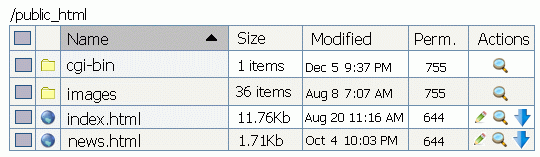
8. To edit the web page you wish to make changes to, click on the "edit" icon for that page - it's the "green pencil" icon - 
9. In the editor [sample below], you will now be able to change your web page content.
After editing your page, click the "save" button at the bottom right.
<html>
<head>
<title>Title of Your Website</title>
</head>
<body>
<STYLE type=text/css>A:link {
	COLOR: #B0C4DE; TEXT-DECORATION: none
}
A:visited {
	COLOR: #CCCCCC;TEXT-DECORATION: none
}
A:hover {
	COLOR: #FFD700; TEXT-DECORATION: none
}
</STYLE>

<body background="images/bg.gif">

<!!--INSERT TEXT BELOW--!!>


You will be able to type your text here!
Note: If you want a space between items, you will have to type <P>


<!!!!--END TEXT--!!>

</body>
</html>
|
If your web page requires more editing, simply return to step 5 [above].
|
|

